How to Fix WooCommerce Payment Gateway Not Showing at Checkout (Complete Guide)

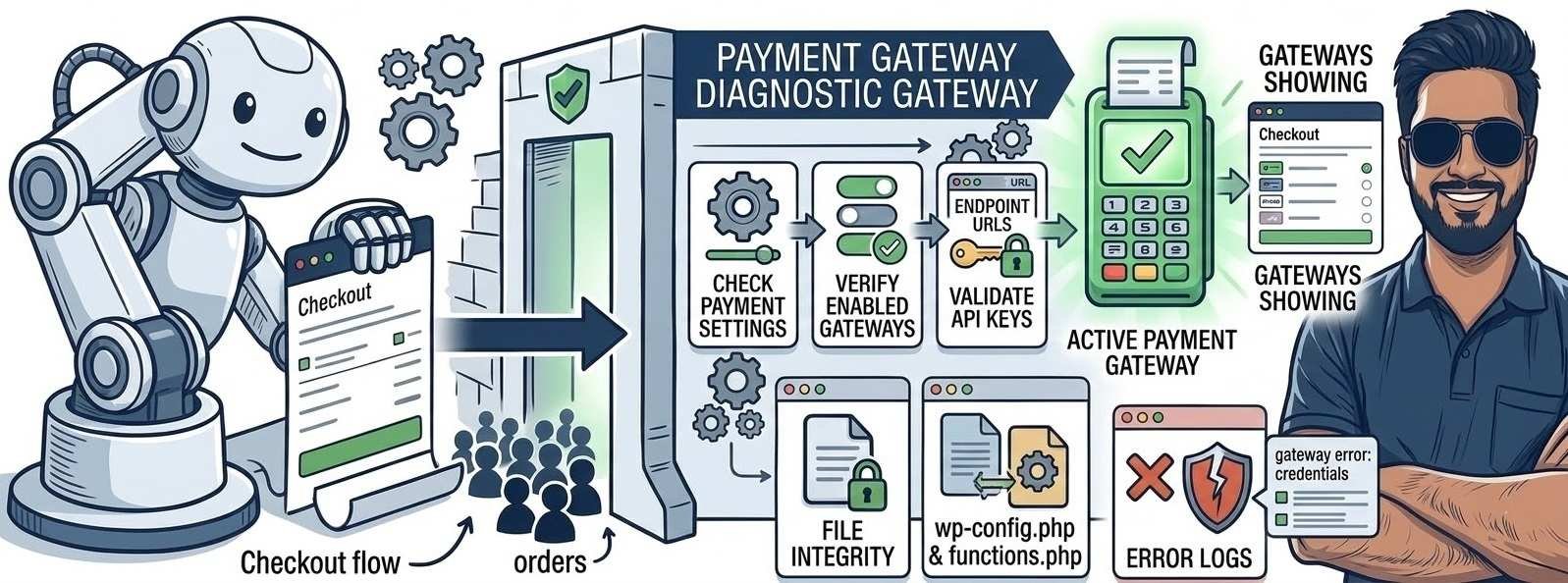
If your WooCommerce payment gateway is not showing at checkout, customers cannot complete their purchases.
Store owners may experience issues like:
- 💳 No payment methods available
- ⚠️ Checkout showing payment gateway errors
- 🧾 Certain payment methods missing
- 🛒 Payment options disappearing after entering address
This problem usually happens because of configuration mistakes, shipping restrictions, plugin conflicts, or currency mismatches.
In this guide, we’ll walk through step-by-step solutions to fix WooCommerce payment gateway issues quickly.
⚡ Quick Fix (Try These First)
If payment methods are missing at checkout, check these first:
- Make sure the payment gateway is enabled
- Verify store currency matches payment gateway
- Confirm shipping zones allow the payment method
- Disable plugins to test conflicts
- Clear website and CDN cache
If the problem continues, follow the detailed troubleshooting steps below.
⚠️ Symptoms of Payment Gateway Problems
Your WooCommerce store may show these signs:
- “No payment methods available” message
- Payment options missing at checkout
- Gateway appearing in admin but not on frontend
- Payment method disappearing after shipping selection
- Checkout stuck during payment selection
These issues usually indicate misconfigured payment settings.
🔍 Common Causes of Missing Payment Gateways
WooCommerce payment methods depend on several factors.
Common causes include:
- Payment gateway disabled in settings
- Store currency not supported by gateway
- Shipping zone restrictions
- Plugin conflicts interfering with checkout
- JavaScript errors blocking checkout scripts
- Cache storing outdated checkout data
Once these problems are fixed, payment methods typically appear again.
🛠 Step-by-Step Fix
Follow these troubleshooting steps.
🔧 1. Check Payment Gateway Settings
First confirm that the payment gateway is enabled.
Steps:
- Go to WooCommerce → Settings
- Click Payments
- Locate your payment gateway
- Ensure the Enable option is checked
Also verify:
- API keys are entered correctly
- Gateway settings are fully configured
🌍 2. Verify Store Currency
Some payment gateways only support certain currencies.
Check your store currency:
- Go to WooCommerce → Settings → General
- Look for Currency Options
- Confirm the currency is supported by the gateway
If the currency is unsupported, the payment method will not appear.
📦 3. Check Shipping Zone Restrictions
Some payment gateways only appear for specific shipping zones.
To verify:
- Go to WooCommerce → Settings → Shipping
- Check your Shipping Zones
- Confirm that the customer location matches the zone
If the shipping zone does not match, the payment gateway may be hidden.
🧩 4. Disable Plugin Conflicts
Plugin conflicts can break payment gateway functionality.
To test this:
- Go to Plugins → Installed Plugins
- Disable all plugins except WooCommerce
- Test checkout again
If the payment gateway appears, reactivate plugins one by one to identify the conflict.
Plugins that often cause issues include:
- Checkout customization plugins
- Payment gateway extensions
- Security plugins
- Discount or coupon plugins
🧹 5. Clear Cache
Caching plugins can store outdated checkout pages.
Clear cache from:
- WordPress caching plugin
- Hosting server cache
- CDN services (like Cloudflare)
Then refresh the checkout page.
🔍 6. Check Browser Console Errors
JavaScript errors can stop payment gateways from loading.
To check:
- Open your website
- Press F12
- Go to the Console tab
Look for red error messages indicating script conflicts.
🖥 When Hosting Can Affect Payment Gateways
WooCommerce payment gateways depend on:
- API requests to payment providers
- Secure server connections
- Dynamic checkout processing
If your server has limited resources or connection issues, payment gateways may fail to load.
Common symptoms include:
- Checkout page extremely slow
- Payment gateways loading intermittently
- Payment errors during high traffic
Reliable hosting infrastructure helps maintain stable checkout performance.
✅ Best Practices to Avoid Payment Gateway Problems
Follow these tips to keep checkout working smoothly:
✔ Always keep WooCommerce updated
✔ Use trusted payment gateway plugins
✔ Avoid installing too many checkout plugins
✔ Clear cache after major updates
✔ Test checkout regularly
These practices help prevent payment failures.
❓ Frequently Asked Questions
This usually happens when the payment gateway is disabled or the store currency is unsupported.
It may be hidden due to shipping zone restrictions, currency mismatch, or plugin conflicts.
Yes. Checkout customization or security plugins can interfere with gateway scripts.
🔗 Related WooCommerce Guides
You may also find these guides helpful:
- Fix WooCommerce Checkout Page Not Loading
- Fix WooCommerce Shipping Cost Not Calculating
- Fix WooCommerce Email Notifications Not Sending
These articles cover other common WooCommerce checkout problems.
WooCommerce payment gateway problems usually occur because of disabled gateways, currency mismatches, shipping restrictions, or plugin conflicts.
By checking gateway settings, verifying currency compatibility, and clearing cache, most stores can resolve this issue quickly.
Once fixed, customers will be able to complete purchases smoothly using their preferred payment method.