

How to Fix “Briefly Unavailable for Scheduled Maintenance” in WordPress

How to Fix “Briefly Unavailable for Scheduled Maintenance” in WordPress
The “Briefly unavailable for scheduled maintenance” error is a common WordPress issue that appears during plugin, theme, or core updates.
Normally, WordPress temporarily places your site in maintenance mode while updates are being installed. Once the update finishes, the site automatically returns to normal.
However, if the update process is interrupted, the website can remain stuck in maintenance mode and display this message to visitors.
This guide explains how to fix the problem quickly and safely.
What Causes This Error?
The issue usually happens when:
• Plugin update stops midway
• Theme update fails
• WordPress core update interrupted
• Server timeout during update
• Low hosting resources
When an update begins, WordPress creates a temporary maintenance file. If the update fails, this file is not removed.
As a result, your website stays locked in maintenance mode.
Step-by-Step Fix
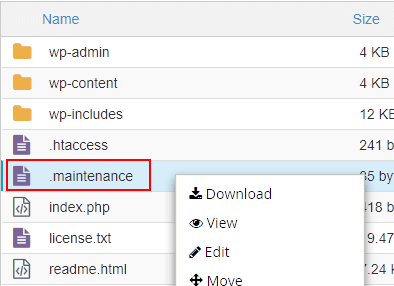
1. Delete the .maintenance File
This is the fastest and most common fix.
Steps:
- Log in to your hosting File Manager or connect using FTP.
- Go to your WordPress root folder (public_html).
- Look for a file named:
.maintenance
- Delete the file.
After removing it, refresh your website.
Your site should return to normal immediately.
2. Clear Website Cache
Sometimes caching systems store the maintenance page.
Clear cache from:
• WordPress caching plugin
• Hosting cache
• CDN (like Cloudflare)
Then reload the site.
3. Check Plugin Updates
If the error appeared after installing a plugin:
- Go to Plugins → Installed Plugins
- Reinstall the plugin
- Update it again carefully
Sometimes incomplete updates cause the issue.
4. Increase PHP Execution Time
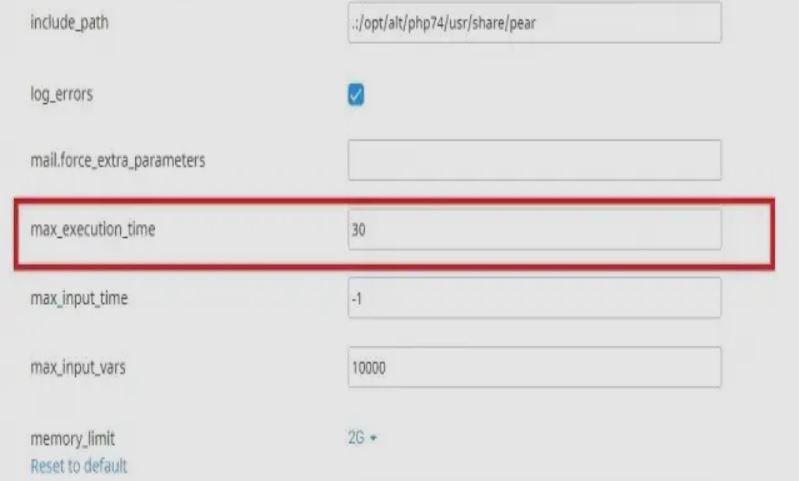
Low server execution time can interrupt updates.
Add this to your php.ini or .htaccess file:
max_execution_time = 300
This allows updates to complete properly.
When Hosting Can Cause This Problem
If updates frequently fail, the root cause may be hosting limitations.
Common signs:
• Updates stop midway
• Website becomes slow during updates
• Admin dashboard freezes
• Resource limit warnings
Shared hosting with limited CPU or memory can interrupt update processes.
In such cases, upgrading to a more powerful hosting environment may improve reliability.
Prevent This Error in Future
Follow these best practices:
✔ Update plugins one at a time
✔ Avoid updating during traffic spikes
✔ Keep backups before major updates
✔ Use reliable hosting with stable resources
✔ Maintain updated PHP version
These steps reduce the chances of update failures.
Technical FAQ
WordPress activates maintenance mode temporarily while installing updates to prevent users from seeing incomplete changes.
No. It does not damage your website or data. It only locks the site temporarily until the update process completes or the maintenance file is removed.
Yes. WooCommerce updates are larger and sometimes fail if server resources are limited.
If the error remains for a long time, search engines may temporarily mark the site as unavailable. Fixing it quickly prevents ranking impact.