How to Fix WooCommerce Cart Not Updating (Complete Troubleshooting Guide)

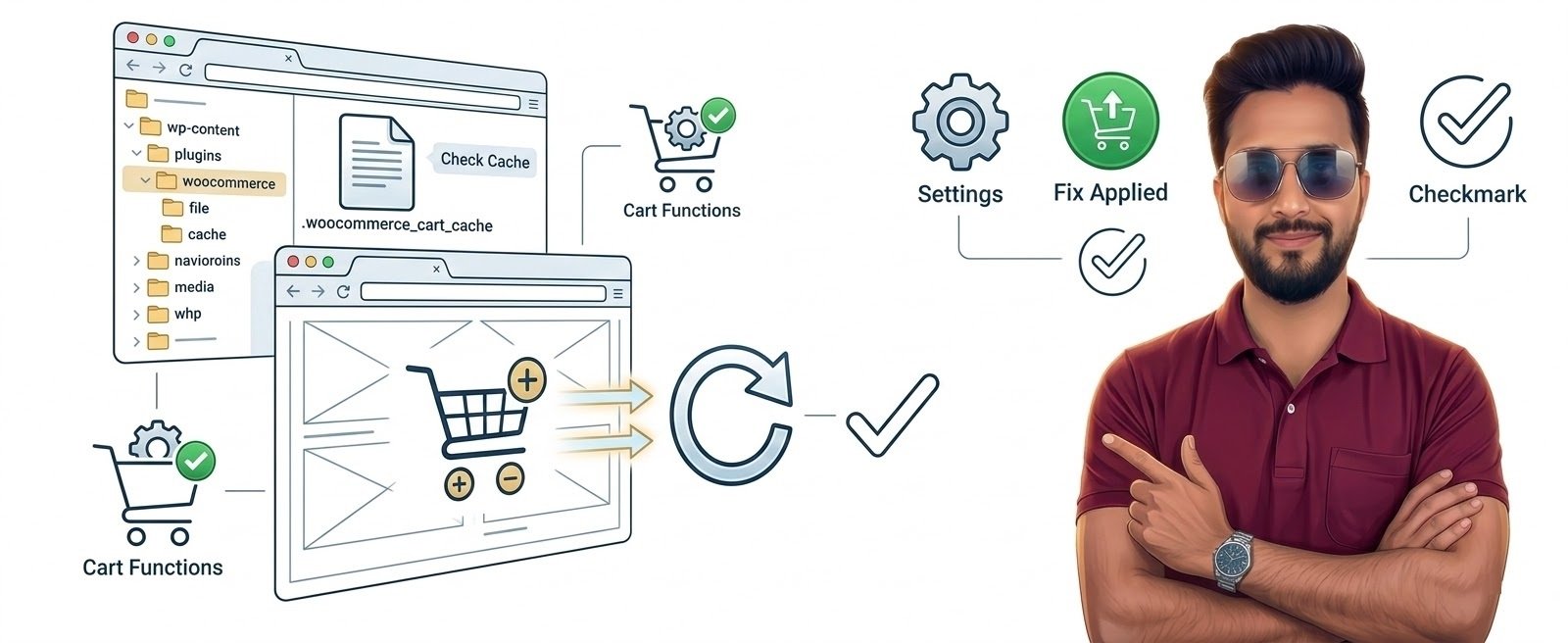
Common Causes of WooCommerce Cart Not Updating
The most frequent reasons include:
• Aggressive caching plugins
• AJAX errors
• WooCommerce cart fragments issue
• Plugin conflicts
• Theme compatibility problems
• CDN or Cloudflare caching
• Hosting resource limits
WooCommerce uses dynamic sessions, so improper caching often breaks the cart functionality.
Step-by-Step Solutions
1. Disable Page Caching for Cart & Checkout
Caching plugins sometimes store static versions of cart pages.
You must exclude these pages from caching.
Exclude these URLs:
/cart/
/checkout/
/my-account/
Most caching plugins like LiteSpeed Cache, WP Rocket, and W3 Total Cache allow page exclusions.
After excluding, clear the website cache.
2. Check WooCommerce Cart Fragments
WooCommerce uses AJAX cart fragments to update cart content dynamically.
Sometimes themes disable this feature.
To fix this:
- Update WooCommerce to latest version
- Ensure cart fragments script is loading properly
- Check browser console for JavaScript errors
You can test this by opening Developer Tools → Console.
3. Disable Plugin Conflicts
A plugin conflict is a very common reason.
Steps:
- Go to Plugins → Installed Plugins
- Disable all plugins except WooCommerce
- Test the cart
If the cart starts working again, enable plugins one by one to find the conflicting plugin.
4. Switch to Default WordPress Theme
Some poorly coded themes interfere with WooCommerce scripts.
Temporarily switch to a default theme like:
• Twenty Twenty-Four
• Storefront (WooCommerce official theme)
If the cart works, your theme needs an update or replacement.
5. Clear CDN Cache
If you use CDN services like Cloudflare:
Clear cache completely.
WooCommerce pages should always bypass CDN caching.
Recommended rule:
*example.com/cart*
*example.com/checkout*
6. Check WooCommerce System Status
WooCommerce provides a diagnostic tool.
Go to:
WooCommerce → Status
Check for:
• Template overrides
• Outdated plugins
• PHP errors
• Server environment warnings
Fix any issues listed there.
When Hosting Causes Cart Problems
WooCommerce cart uses PHP sessions and database queries.
On low-resource hosting environments:
• Sessions may fail
• AJAX requests time out
• Cart fragments fail to update
If your store receives increasing traffic, shared hosting can struggle with dynamic WooCommerce processes.
In such cases, upgrading to a more powerful hosting setup can improve stability and performance.
Best Practices to Avoid Cart Issues
Follow these practices:
✔ Always keep WooCommerce updated
✔ Avoid too many plugins
✔ Use WooCommerce-compatible themes
✔ Exclude cart pages from caching
✔ Monitor server performance
These steps keep your store running smoothly.
Technical FAQ
This usually happens due to caching conflicts or JavaScript errors preventing AJAX updates.
Yes. WooCommerce pages should never be cached by CDN services.
Yes. WooCommerce relies on server resources to manage sessions and dynamic requests.
Why does cart show old totals?