

How to Fix WooCommerce Checkout Page Not Loading (Step-by-Step Guide)

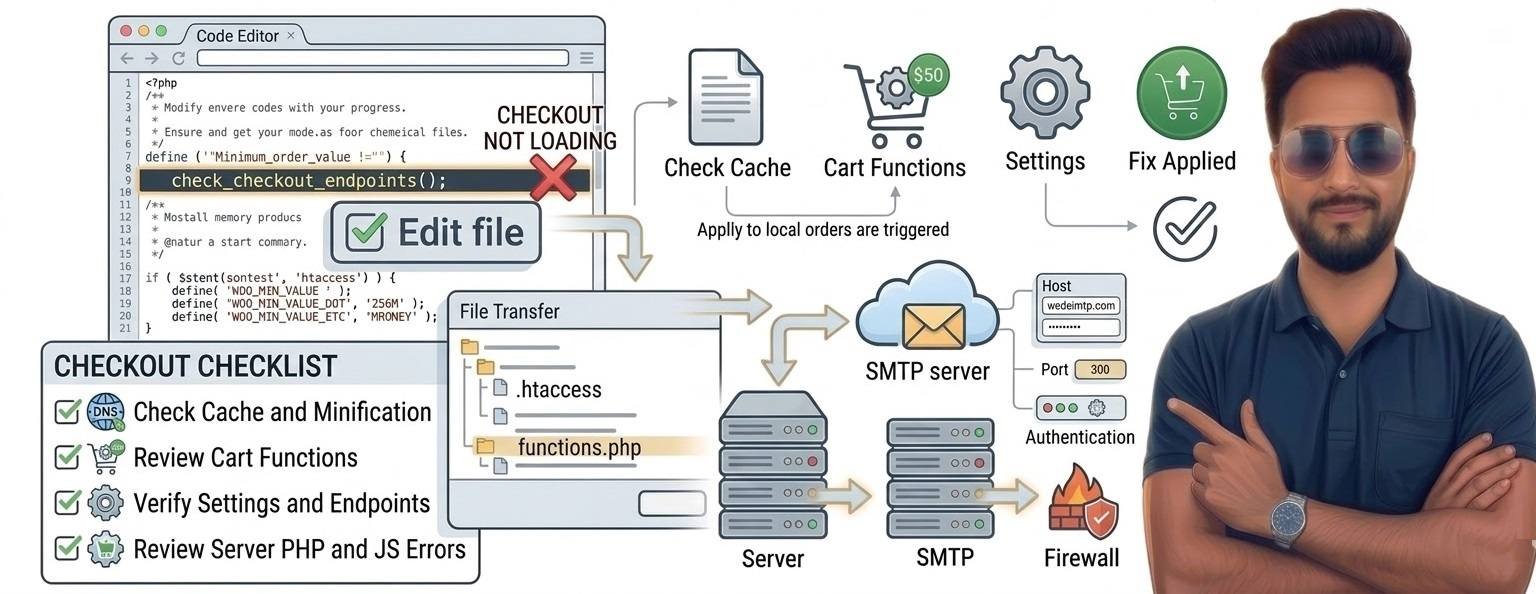
If your WooCommerce checkout page is not loading, customers cannot complete their purchases.
This issue can appear in different ways:
• Checkout page stuck on loading
• Blank checkout page
• Infinite spinner during checkout
• Error message during payment
• Checkout button not responding
Because checkout is the final step of the purchase process, fixing this problem quickly is critical to avoid lost sales.
In this guide, we’ll cover the most common causes and step-by-step fixes.
Common Causes of WooCommerce Checkout Problems
Checkout failures usually happen due to:
• Aggressive caching
• Plugin conflicts
• JavaScript errors
• Payment gateway issues
• Theme compatibility problems
• Server resource limits
Since WooCommerce checkout is a dynamic page, incorrect caching or script errors often break it.
Step-by-Step Solutions
1. Disable Caching for Checkout Page
Caching plugins sometimes cache checkout pages, which breaks dynamic functionality.
Exclude these pages from caching:
/cart/
/checkout/
/my-account/
After excluding them, clear all website and CDN caches.
2. Check JavaScript Errors
JavaScript conflicts often stop checkout from loading.
To check errors:
- Open your website
- Press F12 to open browser developer tools
- Go to Console tab
- Look for red error messages
These errors usually indicate a plugin or theme conflict.
3. Disable Plugins to Find Conflict
Plugin conflicts are one of the most common causes.
Steps:
- Go to Plugins → Installed Plugins
- Disable all plugins except WooCommerce
- Test checkout page
If checkout starts working, activate plugins one by one to identify the conflicting plugin.
4. Switch to a Default Theme
Some poorly coded themes interfere with WooCommerce checkout scripts.
Temporarily switch to a default theme such as:
• Twenty Twenty-Four
• Storefront (official WooCommerce theme)
If checkout works after switching themes, your theme needs an update or replacement.
5. Check Payment Gateway Configuration
Sometimes checkout fails because payment gateways are misconfigured.
Go to:
WooCommerce → Settings → Payments
Check that:
• Payment methods are enabled
• API keys are correct
• Gateway plugins are updated
Also verify that the gateway supports your store currency.
6. Increase PHP Memory Limit
Low server memory can break checkout scripts.
Add this to wp-config.php:
define('WP_MEMORY_LIMIT', '256M');For larger WooCommerce stores, 512MB may be required.
When Hosting Is the Real Problem
Checkout pages use many dynamic processes:
• Cart sessions
• Payment gateway APIs
• Tax calculations
• Shipping calculations
If your hosting server has limited resources, checkout can fail during peak traffic.
Common hosting-related symptoms include:
• Checkout extremely slow
• Random checkout errors
• Orders failing during payment
Upgrading to a more powerful hosting environment often improves WooCommerce stability.
Prevent Checkout Problems in WooCommerce
Follow these best practices:
✔ Keep WooCommerce updated
✔ Avoid installing too many plugins
✔ Use WooCommerce-compatible themes
✔ Exclude cart and checkout pages from caching
✔ Monitor server performance regularly
These steps help maintain a stable checkout process.
Technical FAQ
This usually happens due to JavaScript errors or caching conflicts.
Yes. Poorly coded plugins can interfere with checkout scripts.
Yes. Checkout requires server resources to process dynamic requests.