

How to Fix WordPress Memory Exhausted Error (Step-by-Step Guide

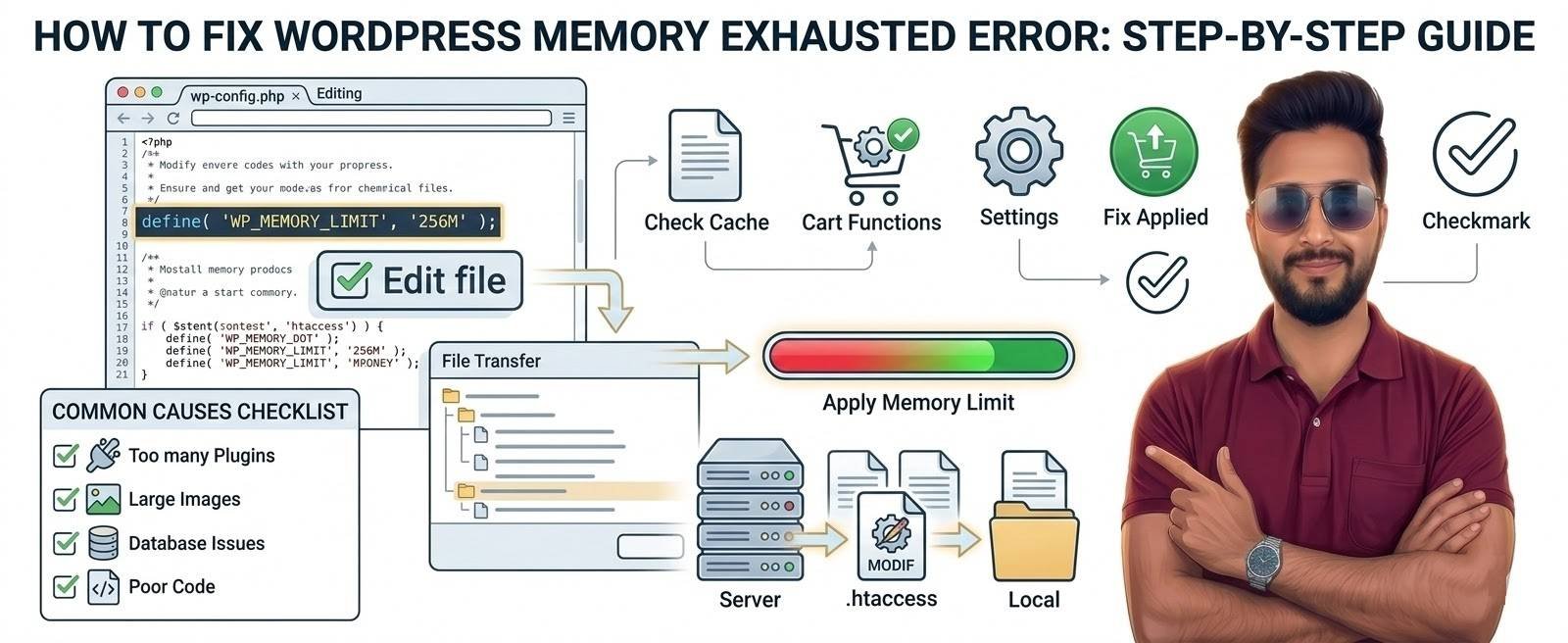
The WordPress Memory Exhausted Error usually appears as:
Fatal error: Allowed memory size exhausted.
This happens when a WordPress script requires more memory than the server allows.
When this error occurs, your website may:
• Stop loading completely
• Show a white screen
• Display a fatal error message
• Crash while installing plugins or themes
This problem is common on shared hosting environments with low memory limits.
In this guide, we will show you several ways to fix it.
What Causes WordPress Memory Exhausted Error?
The most common causes include:
• Low PHP memory limit
• Heavy WordPress plugins
• WooCommerce resource usage
• Large theme frameworks
• Poorly optimized plugins
• Server resource restrictions
Dynamic websites like WooCommerce stores require more memory than simple blogs.
Step-by-Step Fixes
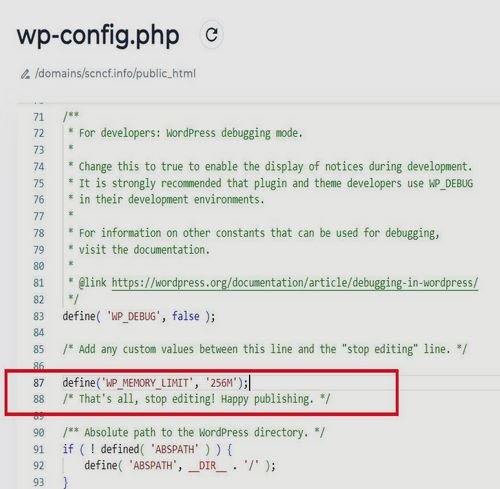
1. Increase WordPress Memory Limit (wp-config.php)
The fastest fix is increasing memory in the WordPress configuration file.
Open wp-config.php and add:
define('WP_MEMORY_LIMIT', '256M');Save the file and reload your website.
For WooCommerce stores, 256MB or 512MB is often recommended.
2. Increase PHP Memory Limit in php.ini
Some hosting providers ignore the WordPress memory setting.
You may need to increase it at the server level.
Edit php.ini and set:
memory_limit = 256M
Then restart the server or clear hosting cache.
3. Modify .htaccess File
If php.ini is not accessible, try increasing memory through .htaccess.
Add:
php_value memory_limit 256M
Save and refresh your site.
4. Disable Heavy Plugins
Some plugins consume excessive memory.
Steps:
- Go to Plugins → Installed Plugins
- Disable recently installed plugins
- Test website performance
Plugins often responsible:
• Backup plugins
• Page builders
• Security scanners
• Broken link checkers
5. Switch to Default Theme
Poorly optimized themes can also consume high memory.
Temporarily switch to:
• Twenty Twenty-Four
• Storefront
If the error disappears, the theme is likely the cause.
6. Optimize WooCommerce Usage
WooCommerce uses additional memory for:
• Cart sessions
• Checkout processing
• Payment gateway integrations
To reduce memory usage:
✔ Reduce unnecessary plugins
✔ Enable caching
✔ Optimize database tables
When Hosting Is the Real Problem
If the memory error keeps appearing even after increasing limits, the hosting server may restrict resources.
Common signs include:
• Hosting refuses higher memory limits
• Frequent resource limit warnings
• Slow admin dashboard
• Website crashes during traffic spikes
Shared hosting plans often cap memory limits.
For growing websites, upgrading to a higher-resource hosting plan may provide better stability.
Preventing Memory Errors in WordPress
Follow these best practices:
✔ Use lightweight plugins
✔ Keep WordPress updated
✔ Remove unused plugins
✔ Optimize images and scripts
✔ Monitor server resource usage
Proper optimization helps avoid memory problems in the future.
💯 Fix High CPU Usage in WordPress
💯 Fix 500 Internal Server Error
☑ WooCommerce Performance Optimization Guide
Technical FAQ
Most WordPress sites run smoothly with 256MB, while WooCommerce stores may require 512MB.
Yes. Heavy plugins can consume large amounts of server memory.
Yes. WooCommerce handles dynamic requests like cart sessions and checkout processes.
Can hosting restrictions cause this error?
- How to Fix WooCommerce Payment Gateway Not Showing at Checkout (Complete Guide)
- How to Block Fake COD Orders in WooCommerce (Complete Guide)
- How to Fix WooCommerce Shipping Cost Not Calculating (Complete Guide)
- How to Fix WooCommerce Checkout Page Not Loading (Step-by-Step Guide)
- How to Fix WooCommerce Email Notifications Not Sending (Complete Guide)