How to Fix WooCommerce Shipping Cost Not Calculating (Complete Guide)

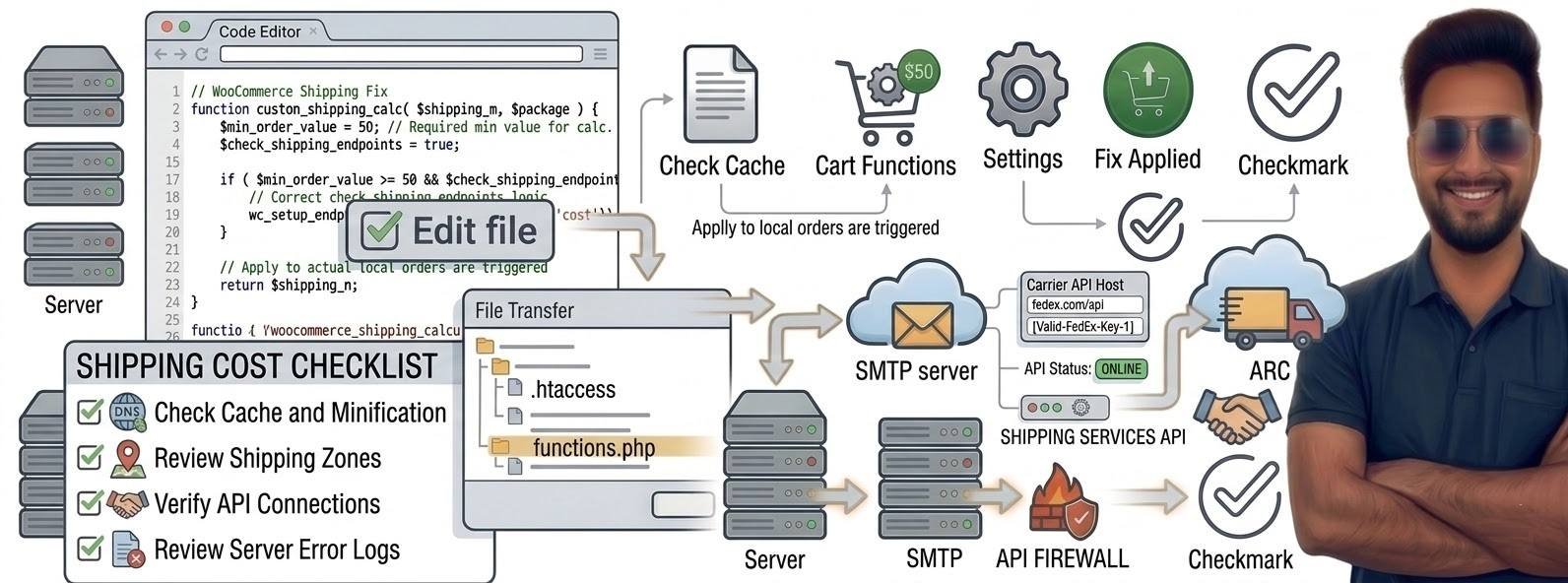
If WooCommerce shipping cost is not calculating, customers cannot see the delivery price during checkout. This often leads to checkout abandonment and lost sales.
Store owners usually notice problems like:
- No shipping methods available
- Shipping cost showing as 0
- Checkout blocked due to shipping error
- Shipping not updating when customer changes address
The good news is that this issue is usually caused by simple configuration mistakes or plugin conflicts.
In this guide, you’ll learn step-by-step solutions to fix WooCommerce shipping calculation problems quickly.
⚡ Quick Fix (Try These First)
If WooCommerce shipping cost is not calculating, check these first:
- Verify shipping zones are configured correctly
- Make sure each zone has a shipping method (Flat Rate / Free Shipping)
- Ensure product weight and dimensions are added
- Clear your website and CDN cache
- Disable plugins to check for conflicts
If the issue persists, follow the detailed troubleshooting steps below.
⚠️ Symptoms of WooCommerce Shipping Problems
Your store may show one or more of these issues:
- “No shipping methods available” at checkout
- Shipping cost showing zero unexpectedly
- Shipping options not appearing after entering address
- Shipping cost not updating when cart changes
- Checkout page stuck while calculating shipping
If you see any of these, your shipping configuration likely needs adjustment.
🔍 Common Causes of Shipping Cost Not Calculating
WooCommerce calculates shipping based on customer location, product details, and shipping rules.
Common causes include:
- Shipping zones not configured properly
- No shipping method added to the zone
- Product weight or dimensions missing
- Plugin conflicts interfering with checkout
- Cache storing outdated checkout data
- Incorrect customer location settings
Once these issues are fixed, shipping calculations usually start working again.
🛠 Step-by-Step Fix
Follow these steps to diagnose and resolve the issue.
🔧 1. Check Shipping Zones
Shipping zones determine where you deliver products.
To check them:
- Go to WooCommerce → Settings
- Click Shipping
- Open Shipping Zones
Make sure:
- The correct country, state, or region is added
- The customer’s location matches one of the zones
- The zone contains a shipping method
If no zone matches the customer address, WooCommerce cannot calculate shipping.
📦 2. Add a Shipping Method to the Zone
Each shipping zone must have at least one shipping method.
Inside the shipping zone, add one of the following:
- Flat Rate
- Free Shipping
- Local Pickup
Without a shipping method, WooCommerce will display:
No shipping methods available
⚖️ 3. Verify Product Weight and Dimensions
Many shipping calculations depend on product weight.
To check:
- Go to Products → Edit Product
- Open the Shipping tab
- Add:
- Weight
- Length
- Width
- Height
Missing weight or dimensions can prevent certain shipping methods from calculating properly.
🧩 4. Check Plugin Conflicts
Some plugins can interfere with WooCommerce shipping calculations.
To test this:
- Go to Plugins → Installed Plugins
- Disable all plugins except WooCommerce
- Test checkout again
If shipping starts working, re-enable plugins one by one to find the conflicting plugin.
Plugins that sometimes cause conflicts:
- Shipping plugins
- Checkout customization plugins
- Discount or coupon plugins
- Page builder integrations
🧹 5. Clear Website and CDN Cache
Caching systems can store outdated checkout data.
Clear cache from:
- Your WordPress caching plugin
- Hosting server cache
- CDN services (like Cloudflare)
After clearing cache, reload the checkout page and test shipping again.
🌍 6. Verify Customer Location Settings
WooCommerce calculates shipping using the customer’s location.
Go to:
WooCommerce → Settings → General
Check these options:
- Selling location
- Shipping location
- Default customer location
Incorrect settings may prevent shipping rules from applying correctly.
🖥 When Hosting Can Be the Problem
WooCommerce shipping calculations require dynamic server processing.
Each checkout request may involve:
- Database queries
- Shipping rule calculations
- Plugin scripts
- Session handling
On very limited hosting environments, these processes may fail during heavy traffic.
Signs of hosting-related issues:
- Checkout extremely slow
- Shipping calculation takes several seconds
- Random checkout errors during traffic spikes
In such cases, improving server resources can help maintain stable checkout performance.
Best Hosting for WooCommerce Upgrade (2026) – Shared to Cloud & VPS Options
✅ Best Practices to Avoid Shipping Problems
Follow these tips to prevent future issues:
✔ Configure shipping zones carefully
✔ Always add at least one shipping method per zone
✔ Include product weight and dimensions
✔ Keep WooCommerce and plugins updated
✔ Avoid installing too many checkout plugins
These best practices help ensure smooth checkout experiences for customers.
❓ Frequently Asked Questions
This usually happens when the customer’s location does not match any configured shipping zone.
This can occur if free shipping is enabled, flat rate settings are incorrect, or shipping rules are misconfigured.
Yes. Many shipping methods rely on product weight or dimensions to calculate shipping fees.
🔗 Related WooCommerce Guides
You may also find these guides helpful:
- Fix WooCommerce Checkout Page Not Loading
- Fix WooCommerce Cart Not Updating
- Fix WooCommerce Email Notifications Not Sending
These troubleshooting guides cover other common WooCommerce issues store owners face.
WooCommerce shipping cost not calculating is usually caused by shipping zone configuration errors, missing product data, or plugin conflicts.
By checking shipping zones, verifying product weight, and clearing cache, most stores can resolve this issue quickly.
Once fixed, customers will be able to see shipping costs correctly and complete checkout without problems.