

Hostinger KVM 1 VPS Setup Guide (Step-by-Step Beginner Tutorial – 2026)

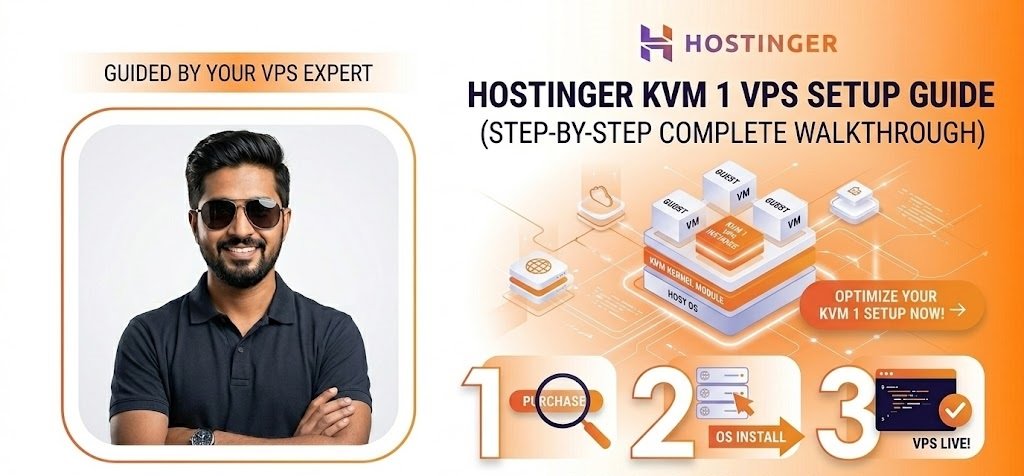
🧱 Hostinger KVM 1 VPS Setup Guide (Complete Beginner Walkthrough)
If you’re moving from shared hosting to VPS for the first time, the Hostinger KVM 1 VPS plan is one of the best beginner-friendly choices.
It gives you:
✔ Dedicated CPU resources
✔ Dedicated RAM
✔ Full server control
✔ Better performance than shared hosting
But unlike shared hosting, VPS requires manual setup.
👉 Don’t worry — in this guide, I’ll show you every step clearly.
🧠 What is KVM 1 VPS?
KVM stands for Kernel-based Virtual Machine.
The KVM 1 plan is an entry-level VPS that gives you:
✔ Virtual dedicated server
✔ Root access
✔ Ability to install anything you want
👉 Ideal for:
- Medium WordPress sites
- WooCommerce stores
- Developers
- Learning VPS hosting
⚠️ Before Starting (IMPORTANT)
With VPS:
✔ You control the server
✔ You manage security
✔ You install software manually
👉 This guide uses:
✔ Ubuntu 22.04 LTS
✔ NGINX
✔ WordPress
🛒 STEP 1: Buy Hostinger KVM 1 VPS
- Visit Hostinger website
- Click VPS Hosting
- Choose KVM 1
- Click Add to Cart
- Use Coupon Code For Saving Some Money – Use Our Highly Discount Codes here – Redeem KVM 1 Coupon Code
👉 During Checkout:
✔ Select 12/24 months
✔ Choose nearest server location
✔ Create account
✔ Apply coupon code
✔ Complete payment
⚙️ STEP 2: Open VPS Dashboard
After payment:
- Login to Hostinger
- Go to:
👉 VPS → Manage
You’ll now see:
✔ VPS IP Address
✔ Root username
✔ Root password
✔ Server status
🖥️ STEP 3: Install Operating System (Ubuntu)
- Click Operating System
- Select:
👉 Ubuntu 22.04 LTS
- Click Change OS
⏱️ Wait 2–5 minutes
🔐 STEP 4: Connect to VPS via SSH
👉 Windows Users
Use:
✔ PuTTY
OR
✔ Windows Terminal
👉 Mac/Linux Users
Open Terminal
Run:
ssh root@your_server_ipExample:
ssh root@185.xxx.xxx.xxxPress Enter
👉 First Login
Type:
✔ yes
Then enter VPS password
👉 You are now connected to your server
🔄 STEP 5: Update Server Packages
First thing you should always do:
apt update && apt upgrade -y👉 This updates all server software and security patches.
🧱 STEP 6: Install NGINX Web Server
NGINX is lightweight and fast.
Install it:
apt install nginx -y👉 Test NGINX
Open browser:
http://your_server_ip✔ You should see:
👉 “Welcome to NGINX”
🐘 STEP 7: Install PHP
WordPress requires PHP.
Run:
apt install php-fpm php-mysql php-cli php-curl php-zip php-mbstring php-xml -y👉 Check PHP Version
Run:
php -v🗄️ STEP 8: Install MySQL Database
Install database server:
apt install mysql-server -y👉 Secure MySQL
Run:
mysql_secure_installation👉 Recommended Answers
✔ Remove anonymous users → Yes
✔ Disable remote root login → Yes
✔ Remove test database → Yes
🌐 STEP 9: Create WordPress Database
Login:
mysql -u root -p👉 Create Database & User
Run:
CREATE DATABASE wordpress;
CREATE USER 'wpuser'@'localhost' IDENTIFIED BY 'StrongPassword123!';
GRANT ALL PRIVILEGES ON wordpress.* TO 'wpuser'@'localhost';
FLUSH PRIVILEGES;
EXIT;
📦 STEP 10: Download WordPress
Move to web directory:
cd /var/www/Download WordPress:
wget https://wordpress.org/latest.tar.gzExtract:
tar -xvzf latest.tar.gzRename folder:
mv wordpress yourdomain🔑 STEP 11: Set Correct Permissions
Run:
chown -R www-data:www-data /var/www/yourdomain
chmod -R 755 /var/www/yourdomain
👉 Important for security and WordPress functionality.
⚙️ STEP 12: Configure NGINX for Your Domain
Create config file:
nano /etc/nginx/sites-available/yourdomainPaste:
server {
    listen 80;
    server_name yourdomain.com www.yourdomain.com;

    root /var/www/yourdomain;
    index index.php index.html;

    location / {
        try_files $uri $uri/ /index.php?$args;
    }

    location ~ \.php$ {
        include snippets/fastcgi-php.conf;
        fastcgi_pass unix:/run/php/php8.1-fpm.sock;
    }

    location ~ /\.ht {
        deny all;
    }
}
🔗 STEP 13: Enable Website Configuration
Run:
ln -s /etc/nginx/sites-available/yourdomain /etc/nginx/sites-enabled/Test config:
nginx -tRestart NGINX:
systemctl restart nginx🌍 STEP 14: Connect Domain to VPS
Go to your domain provider.
Add:
✔ A Record → your VPS IP
👉 Example:
| Type | Name | Value |
|---|---|---|
| A | @ | VPS IP |
| A | www | VPS IP |
⏱️ Wait for DNS propagation
🔒 STEP 15: Install SSL Certificate (HTTPS)
Install Certbot:
apt install certbot python3-certbot-nginx -yRun SSL setup:
certbot --nginx👉 During Setup
✔ Enter email
✔ Accept terms
✔ Choose your domain
👉 SSL installed successfully 🔐
🚀 STEP 16: Complete WordPress Installation
Open:
https://yourdomain.comNow WordPress setup screen appears.
Enter:
✔ Database Name
✔ Database Username
✔ Database Password
Click Install
🔐 STEP 17: Secure Your VPS (VERY IMPORTANT)
👉 Enable Firewall
Run:
ufw allow OpenSSH
ufw allow 'Nginx Full'
ufw enable
👉 Disable Root Login (Advanced)
Edit SSH config:
nano /etc/ssh/sshd_configChange:
PermitRootLogin noRestart SSH:
systemctl restart ssh⚡ STEP 18: Optimize VPS Performance
✔ Install LiteSpeed Cache plugin
✔ Use Cloudflare CDN
✔ Optimize images
✔ Remove unused plugins
💾 STEP 19: Setup Backups
Install backup plugin:
✔ UpdraftPlus
Store backups:
✔ Google Drive
✔ Dropbox
⚠️ Common Beginner Mistakes
❌ Weak passwords
❌ No firewall
❌ Wrong file permissions
❌ Forgetting backups
🔥 Pro Tips (Real VPS Experience)
✔ Monitor RAM usage regularly
✔ Keep server updated
✔ Don’t install unnecessary software
✔ Restart services after changes
🎯 Who Should Use KVM 1?
✔ Growing websites
✔ Small WooCommerce stores
✔ Developers learning VPS
🎉 Result
After setup:
✔ VPS fully configured
✔ WordPress installed
✔ SSL active
✔ Secure server
✔ Better performance than shared hosting
❓ FAQ
👉 Yes, excellent for medium-size websites.
👉 Basic terminal usage helps.
👉 Ubuntu 22.04 LTS
👉 Yes, much better performance and control.