Hostinger WordPress Optimization Guide (2026 Complete Speed Tutorial)

🚀 Hostinger WordPress Optimization Guide
If you are hosting your website on Hostinger, you already have access to powerful performance features like LiteSpeed servers, built-in caching, and CDN integration.
However, many WordPress websites still load slowly because the hosting environment is not properly optimized.
In this guide, I will show you step-by-step methods to fully optimize WordPress on Hostinger to improve website speed, performance, and Core Web Vitals.
⚡ Why WordPress Optimization is Important
Optimizing your WordPress website helps:
✔ Improve website loading speed
✔ Increase SEO rankings
✔ Reduce server resource usage
✔ Improve user experience
✔ Increase conversions for WooCommerce stores
Even if you are using good hosting, optimization is still necessary for best performance.
🔧 Step 1: Enable LiteSpeed Cache Plugin
Hostinger servers run on LiteSpeed technology, which means you should use the official LiteSpeed Cache plugin.
How to Enable It
- Login to WordPress dashboard
- Go to Plugins → Add New
- Search for LiteSpeed Cache
- Install and activate the plugin
This plugin automatically enables:
• server-level caching
• page caching
• object caching
• browser caching
These features significantly reduce page load time.
⚙️ Step 2: Configure LiteSpeed Cache Settings
After activating the plugin, configure these important settings.
Recommended Settings
Cache Settings
✔ Enable Cache
✔ Enable Browser Cache
✔ Enable Object Cache
Page Optimization
✔ Minify CSS
✔ Minify JavaScript
✔ Combine CSS files
✔ Lazy load images
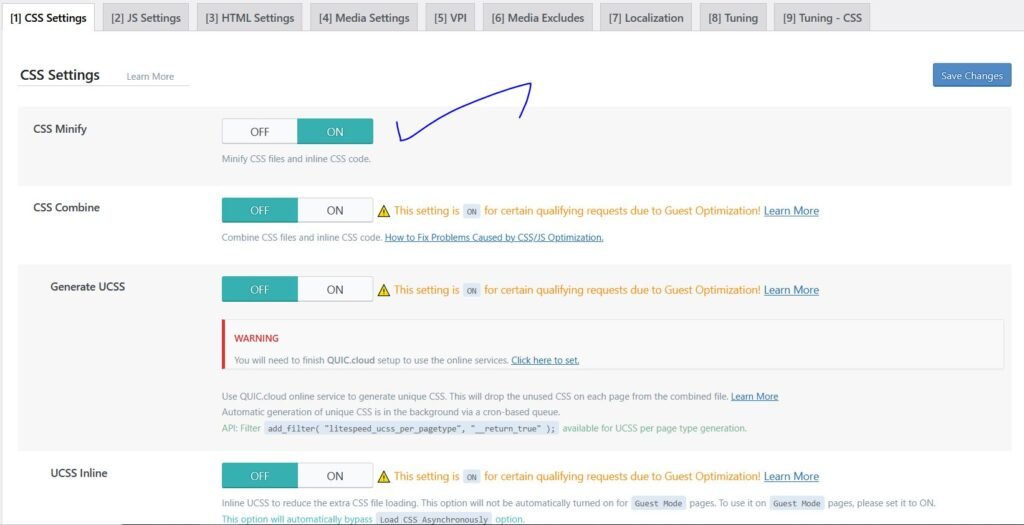
These settings help reduce file sizes and HTTP requests, improving loading speed.
🌐 Step 3: Enable CDN for Faster Global Speed
Using a CDN helps deliver your website content faster to visitors around the world.
One of the best CDN providers is:
• Cloudflare
How to Enable CDN
- Create a Cloudflare account
- Add your domain
- Update DNS settings
- Enable CDN and caching
This reduces latency and improves global performance.
🗄️ Step 4: Optimize WordPress Database
Over time, WordPress databases accumulate unnecessary data like:
• post revisions
• spam comments
• expired transients
• unused tables
Cleaning your database improves performance.
You can optimize your database using:
• LiteSpeed Cache database optimizer
• WordPress database plugins
Schedule automatic cleanup every 1–2 weeks.
🖼️ Step 5: Optimize Images
Large images are one of the biggest causes of slow websites.
Best practices:
✔ Compress images before uploading
✔ Use WebP image format
✔ Enable lazy loading
✔ Resize large images
These steps reduce bandwidth and speed up page loading.
🛒 Step 6: Optimize WooCommerce Performance
If you run an online store using WooCommerce, optimization becomes even more important.
Recommended improvements:
✔ Disable unused WooCommerce features
✔ Optimize product images
✔ Use object caching
✔ Enable CDN
WooCommerce stores often generate dynamic requests, so proper caching is critical.
🔒 Step 7: Improve Website Security
Security also affects performance because hacked websites often become slow.
Important security practices:
✔ Enable SSL certificate
✔ Update plugins regularly
✔ use firewall protection
✔ enable malware scanning
Most Hostinger plans include free SSL certificates.
📊 Step 8: Test Website Speed
After optimization, test your website speed using tools like:
• Google PageSpeed Insights
• GTmetrix

These tools help identify additional performance issues.
🎯 Final Thoughts
WordPress optimization is essential for achieving fast website performance, even when using reliable hosting.
By following the steps in this guide, you can significantly improve the speed and efficiency of your WordPress website hosted on Hostinger.
Faster websites not only improve user experience but also help increase search engine rankings and conversions.
❓ FAQ – Hostinger WordPress Optimization
Yes. Hostinger uses LiteSpeed servers, which means the LiteSpeed Cache plugin works perfectly for caching and performance optimization.
Yes. Hostinger is optimized for WordPress hosting and provides features such as LiteSpeed servers, automatic updates, and easy WordPress installation.
You can improve speed by enabling LiteSpeed Cache, optimizing images, enabling CDN, and cleaning your WordPress database regularly.
Also Read
Hostinger LiteSpeed Cache Settings (Best Configuration for Maximum Speed)